Your company profile, and why auto-fill from SAM.gov comes first
The company profile is the input to nearly everything Cairn ranks, scores, or drafts. Fit scores, top matches, the recompete sweep, and AI drafting all read from it, so time spent on this one page pays back everywhere else. Here is what each field does and the order we'd fill them in.
Every new account gets pointed at the company profile before it sees anything else, and every empty dashboard we've ever been asked about traced back to a profile that was still blank. Fit scores, the dashboard's top matches, the weekly recompete sweep, and every AI draft read from this one page. So this post takes it slowly, field by field, in the order we'd fill it in.
Open Company › Company Profile. The page has an auto-fill hero at the top, then four sections: Identity, Capabilities & targeting, SAM.gov API key, and, for grant applicants, Grants.gov submission.
Start with auto-fill from SAM.gov
Type your UEI into the box under Auto-fill from SAM.gov and click Auto-fill. Cairn calls SAM.gov and pulls your legal name, CAGE code, address, registration status, NAICS and PSC codes, and the set-aside certifications on your registration.

Two things we want you to know about how this works. Auto-fill only touches the fields SAM.gov returns, so anything you've typed into other fields stays put. And nothing is saved until you review the result and click the save button at the bottom, so you can run it, look, and back out.
Once SAM.gov data is in, a status strip shows whether your registration is Active (eligible to receive federal awards) and when it expires unless renewed. Both refresh each time you auto-fill, and the bell in the top band warns you as the expiry date approaches. Letting a SAM.gov registration lapse is the most avoidable way to lose an award, so we made sure the app nags about it.

Identity
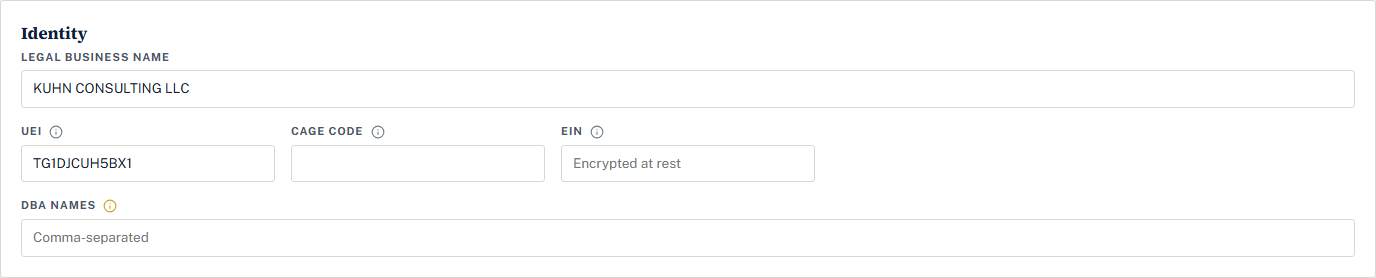
Four identifiers live here. The UEI is the 12-character Unique Entity Identifier assigned in SAM.gov; it replaced the DUNS number in 2022, and the one you enter must match your registration exactly. The CAGE code is the 5-character Commercial and Government Entity code from that same registration, which agencies use to identify your business on contracts and payments; auto-fill sets it, so you'll rarely type it. The EIN is your 9-digit IRS tax ID, stored encrypted at rest and used only to match your entity. It never appears in searches or exports. And DBA names are trade names you operate under besides your legal name, comma-separated, so awards and opportunities recorded under those names still match you.
Capabilities and targeting
This section is what fit ranking reads. We'd give it more attention than any other part of the page.
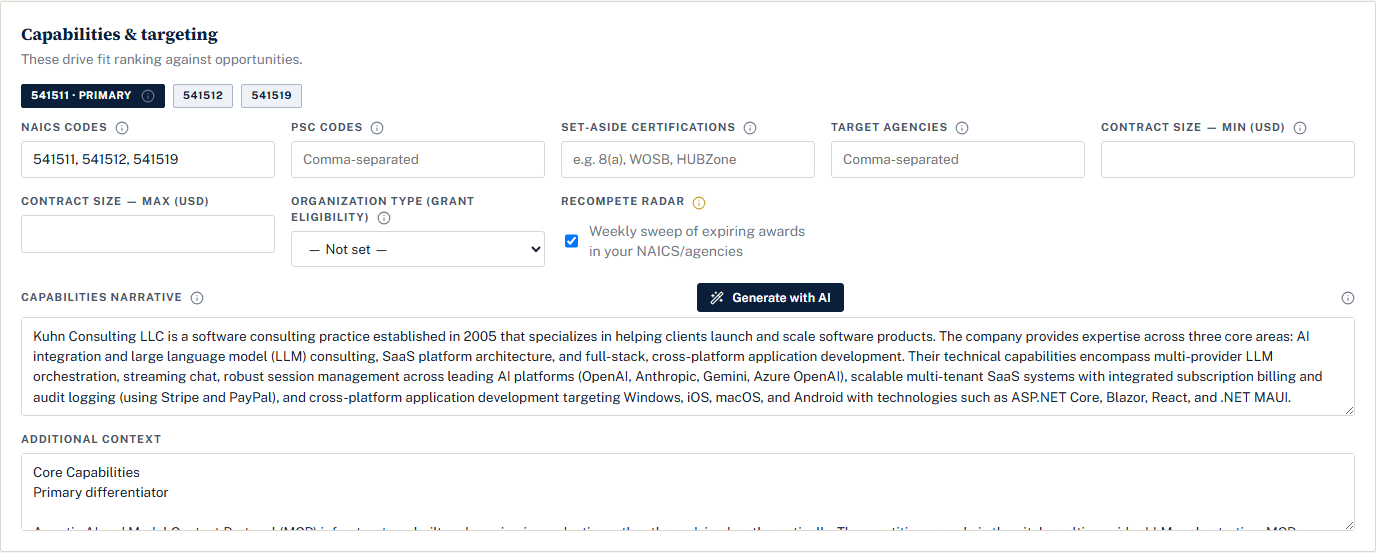
NAICS codes classify what your business does; PSC codes classify what the government is buying. Both fields take a comma-separated list. The first NAICS code you list is flagged as your primary and shown as a gold chip. It's your headline classification for fit ranking, so put your most representative code first, not the one you happened to register first.
List the certifications you hold under Set-aside certifications: 8(a), WOSB, HUBZone, SDVOSB, and so on. Auto-fill sets these from your registration. Listing them is what lets fit ranking surface set-aside work you can actually bid, and it's also what lets Cairn flag a high-fit notice as Ineligible when your certifications bar you from it.
Agencies you name under Target agencies get extra weight in fit ranking, and Recompete Radar watches them for expiring awards. Comma-separated, and as specific as you can make them.
Under Contract size, give a minimum and maximum dollar band. Opportunities well below or well above it rank as weaker fits. Be honest here. A band that runs from nothing to everything tells the ranker nothing.
Pick your Organization type: it's your applicant type for federal grants, whether small business, nonprofit 501(c)(3), state or local government, tribal, higher education, and so on. Grants.gov restricts many funding opportunities to specific applicant types, so this one field decides which grants you're eligible for.
The last item in the section is the Recompete radar checkbox. Turn it on and Cairn runs a weekly sweep of expiring federal awards in your NAICS codes and target agencies, so you can position for the follow-on before the solicitation drops. It's part of the Professional plan.
The capability narrative
A plain-language description of what your company does, your past performance, and what sets you apart. The AI reads it both when scoring fit and when drafting proposals, so it's worth writing properly rather than pasting a tagline from your website.
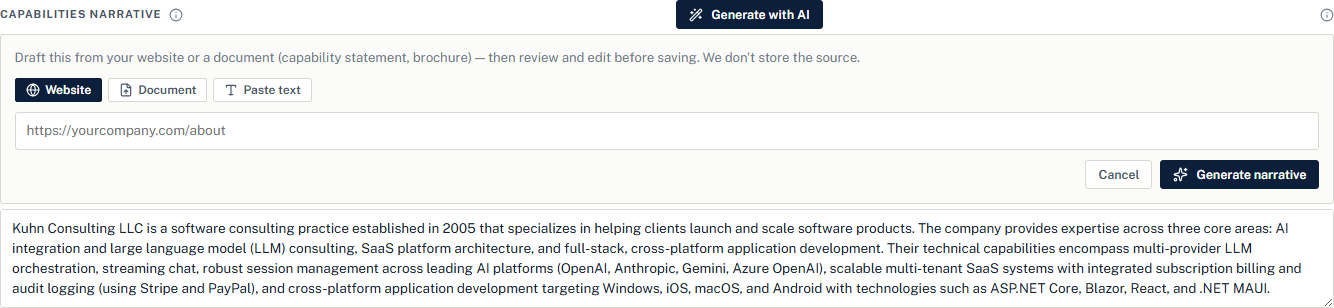
If you'd rather not start from a blank box, Generate with AI drafts one for you. Click it and pick a source: Website (a URL, and we'll read the page), Document (a capability statement or brochure as PDF, Word, an image, or text, up to 10 MB), or Paste text. Click Generate narrative, then edit what comes back before you save. The source you provide isn't stored. AI drafting is included in the Professional plan; on Starter the button reads Generate with AI: upgrade and takes you to the subscription page.
There's an Additional context box below the narrative for anything else that should inform fit and the assistant. Unusual past performance, a niche you're moving into, a customer you'd rather not work for: this is the place.
Your SAM.gov API key
This section trips people up, so here's the whole story.
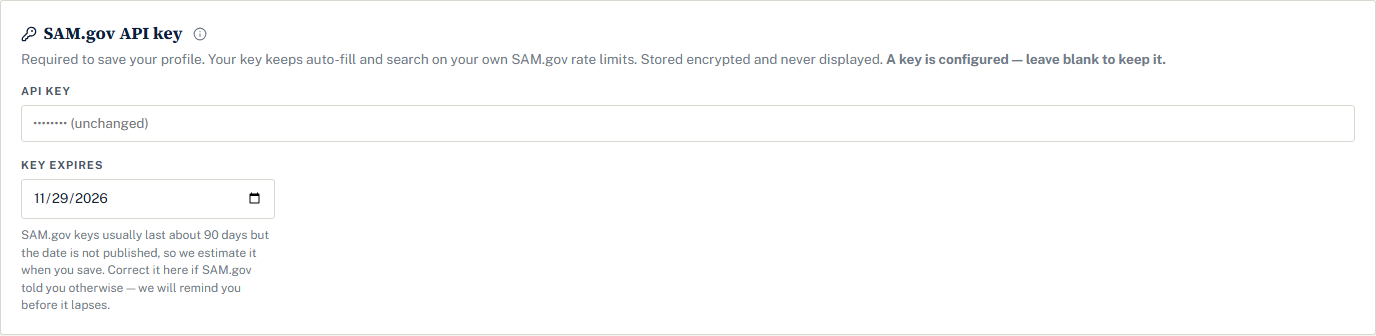
Auto-fill and opportunity search run against SAM.gov, and SAM.gov meters access with API keys. A personal key runs those calls on your own rate limits instead of a shared pool, which is why a key is required to save your profile. It's stored encrypted and never shown again; leave the field blank on later visits to keep the key you already saved.
To get one:
- Go to SAM.gov and sign in. You'll need a Login.gov account, so create one if prompted.
- Select your name in the top-right corner, then choose Account Details.
- Scroll to the API Key section.
- Click Request API Key and re-enter your password if asked.
- Copy the generated key. It's shown only once, so store it somewhere safe.
- Paste it into the API key field in Cairn and click Save changes.
So that setup works immediately, new accounts borrow a shared starter key for a short period. Once that period ends, opportunity search and saved-search alerts need a key of your own. Filling in your profile from SAM.gov keeps working either way, so you're never locked out of finishing the profile, and you'll see a reminder before starter access ends.
When the key expires
SAM.gov keys stop working roughly 90 days after they're created, and SAM.gov doesn't publish the exact date through its API. So we estimate the expiry when you save a key and remind you as it approaches: two weeks out, then again in the last few days. If SAM.gov showed you a different date, correct it in the Key expires field and the reminders follow the stored date.
An expired key is still sent to SAM.gov, because the date is only our estimate and the key may well still work. If it doesn't, you'll see errors from SAM.gov. Request a new key, paste it in, and save; saving a new key resets the expiry.
Save, and what happens next
The button at the bottom reads Create profile the first time and Save changes after that. On save, the "Finish your company profile" banner disappears across the app, and from then on new captures are scored against what you entered.
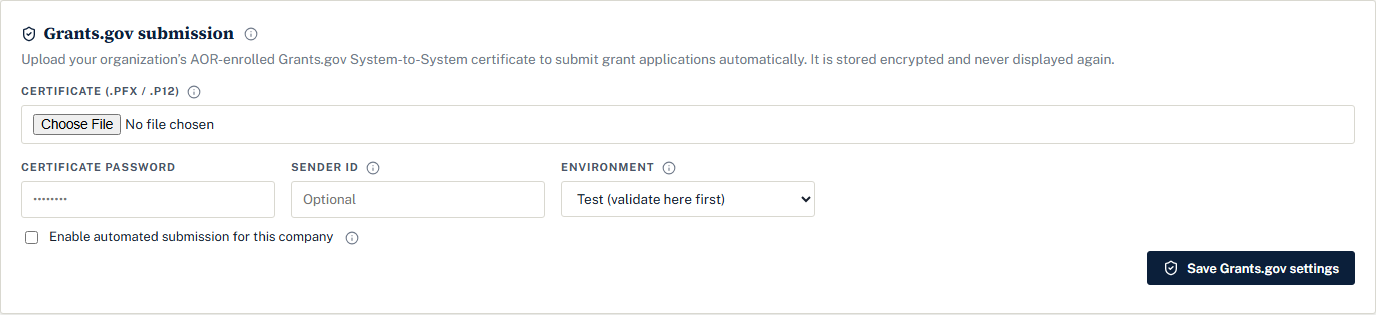
If you'll be filing grants through Cairn, the Grants.gov submission card at the bottom of the page is where the AOR certificate goes. That's an Enterprise feature and a topic of its own, so we cover it in part two of the proposal writer guide.
One habit worth forming: come back to this page when something real changes. A new certification, a new target agency, a narrative that finally says what you do now rather than three years ago. The ranker can only be as good as the profile it reads.
Questions people ask
What if my SAM.gov registration is about to expire?
Cairn shows your registration status and expiry date in the strip under the auto-fill hero, both refreshed each time you auto-fill, and the notification bell warns you as the date approaches. Renewing happens on SAM.gov itself; once you've renewed, run auto-fill again to pull the new status and date into your profile.
Does auto-fill overwrite what I've already typed?
No. Auto-fill only fills the fields SAM.gov returns, so your own edits to other fields stay untouched, and nothing is saved until you review the result and click Save changes. If you don't like what came back, leave the page without saving and your stored profile is unchanged.
Why is one of my NAICS codes shown in gold?
The first NAICS code you list is your primary code, and the gold chip marks it. It's your headline classification for fit ranking, so put your most representative code first. The order of the rest doesn't matter.
Do you keep the website or document I give Generate with AI?
No. The source you provide for the narrative, whether a URL, an uploaded document, or pasted text, is read to draft the narrative and isn't stored. What gets saved is the narrative text you review and keep, in your company profile.