Getting started with Cairn: from sign-up to your first pursuit
Cairn is a capture platform for small businesses chasing federal contracts and grants. This is the order we'd do things in on day one, and it starts with the company profile, because almost everything else in the product scores against it.
We built Cairn to make federal capture a repeatable process: find the right opportunities, decide deliberately whether to bid, and turn the ones you pursue into submitted proposals. This post is the short version of the first hour. If you only do one thing today, make it the company profile. We'll explain why as we go.
Create your account
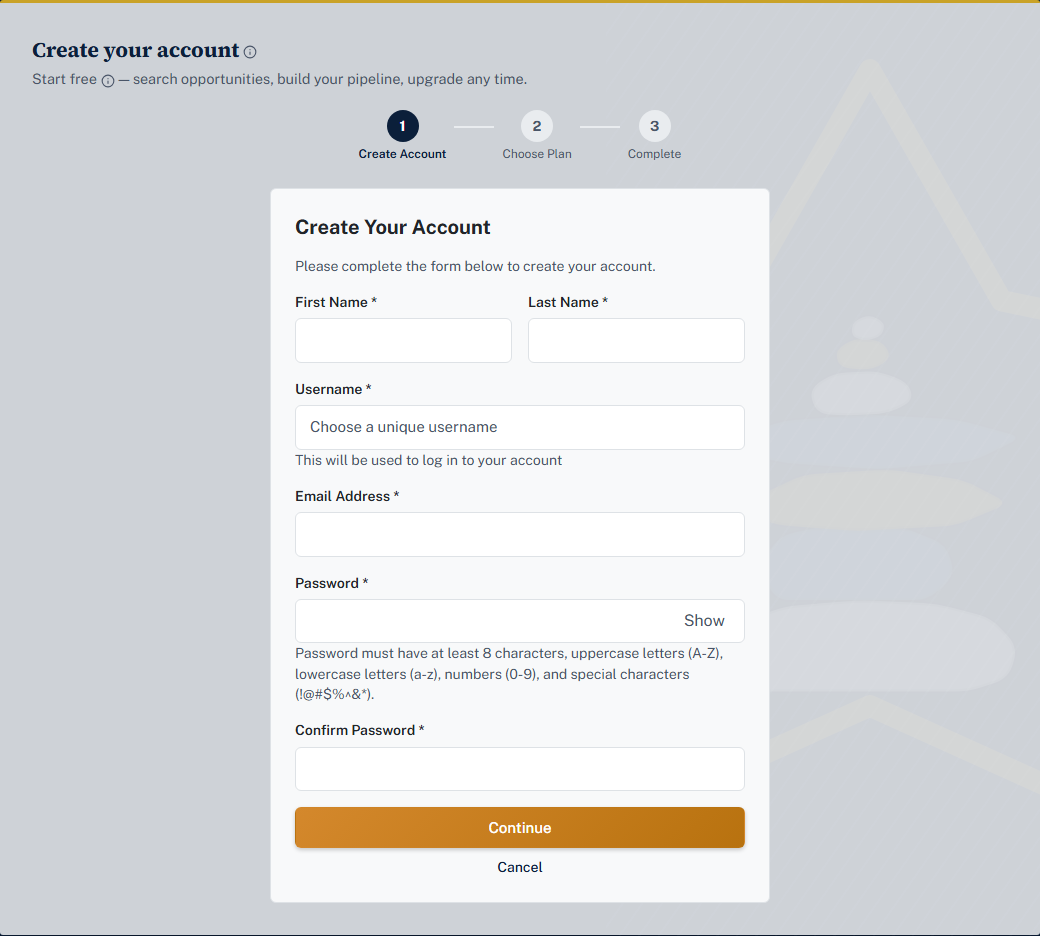
Sign-up is plan first. Go to cairnfed.ai/signup, fill in your name, email, and a password on the Create your account form, and click Continue. You'll land on Choose Your Plan. Pick Starter (it's free) and click Get Started. The account is only created once you've confirmed a plan, which is why there's no "confirm your email later" limbo.
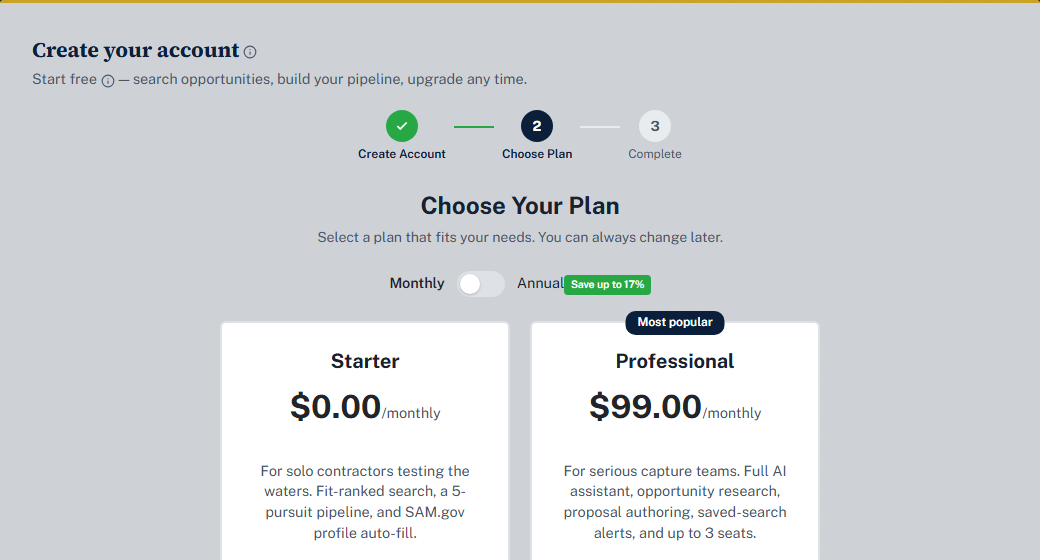
Starter covers fit-ranked search and the pipeline. Professional adds the AI toolkit: the assistant, the proposal workspace, AI drafting, Recompete Radar, and team seats. You can start free and upgrade later without losing anything; a feature outside your plan shows as locked rather than hidden, so you can see what's there before paying for it. Current prices are on the home page.
After the plan step, Cairn sends you straight to the company profile. That's deliberate.
Fill in your company profile first
A brand-new account has a mostly empty dashboard, and the reason is always the same: nothing has been scored yet, because there's no profile to score it against. Fit scores, the dashboard's top matches, the weekly recompete sweep, and AI drafting all read from this one page. Until it's filled in, Cairn shows a banner that says Finish your company profile. on every page, with a Complete profile button. We put that banner there on purpose. It's the one nag in the product.
Here's the fast path:
- Open Company › Company Profile.
- Type your 12-character UEI into the box at the top and click Auto-fill. Cairn pulls your legal name, CAGE code, address, registration status, NAICS and PSC codes, and set-aside certifications straight from SAM.gov. Nothing is saved until you review it and click the save button, so you can look before you commit.
- Add what SAM.gov doesn't know about you: your target agencies, your typical contract size, your organization type (this is what decides which grants you're eligible for), and a capability narrative that says what you actually do.
- Paste in a SAM.gov API key and click Create profile.
That last step surprises people, so a word on it. The API key is required to save the profile, because auto-fill and opportunity search run against SAM.gov on your own rate limits rather than a shared pool. New accounts borrow a shared starter key for a short period so nothing blocks you on day one, and you'll see a reminder before that access ends. Requesting your own takes a couple of minutes on your SAM.gov account details page. The company profile post walks through every field and the key, including what happens when a key expires.
The capability narrative deserves more than a tagline. The AI reads it when scoring fit and when drafting proposals, so a plain paragraph about what you do, who you've done it for, and what sets you apart pays back everywhere. On Professional, Generate with AI will draft a first version from your website, a capability statement, or pasted text, and you edit from there.
Run your first search
Open Capture › Find Opportunities. One search covers both federal registries: contract opportunities from SAM.gov and grant funding opportunities from Grants.gov. Type a few keywords for the kind of work you do, keep both source pills on, and search.
Every result carries a fit score from 0 to 100 and a short Why it fits list. The score is how well the notice matches your profile: your NAICS and PSC codes, the set-aside certifications you hold, your target agencies, and your narrative. Treat it as triage rather than a verdict. It tells you what to read first, and clicking a title opens the official notice at its source so you're always reading the government's own posting.
Two things worth knowing on this page. First, the structured filters (NAICS, set-aside, state, due window) only narrow SAM.gov results, because Grants.gov opportunities don't carry those fields. Grants are matched on your keywords alone. Second, a high-fit result your certifications bar you from gets an explicit Ineligible flag instead of quietly disappearing. We'd rather show you a strong match you can't bid than have the score nudge you toward work you're not permitted to win.
When something looks promising, click Add to Pipeline. The button changes to Added to Pipeline and the opportunity becomes a pursuit.
Add a pursuit and look at the board
A new pursuit arrives in Identified, the first capture stage, and shows up on the board under Capture › Pipeline. The stages run left to right: Identified, Qualifying, Pursuing, Proposal in Progress, Submitted. Then a pursuit closes as Won, Lost, or No-bid.
Each card has an Advance button, and opening a card shows four tabs: Overview (the opportunity facts), Intelligence (AI-gathered details once you click Sync), Tools (the bid/no-bid scorecard and, later, the proposal and submission package), and Activity (every move and note, with a history behind it). Moving a card is a decision you're recording, not a drag on a whiteboard, which is why every move lands in the activity log.
We cover qualifying, the scorecard, and gate reviews in the pipeline post. For day one, adding one real pursuit is enough to make the rest of the product light up.
Read the dashboard
The dashboard answers one question: what deserves attention today. Four tiles across the top: Active Pursuits (everything not yet Won, Lost, or No-bid), Est. Pipeline Value (the estimated dollar value of every active pursuit, summed straight up and not weighted by win probability), Avg Fit Score, and Due This Month. Anything due within 14 days counts as critical and turns red across the whole app.
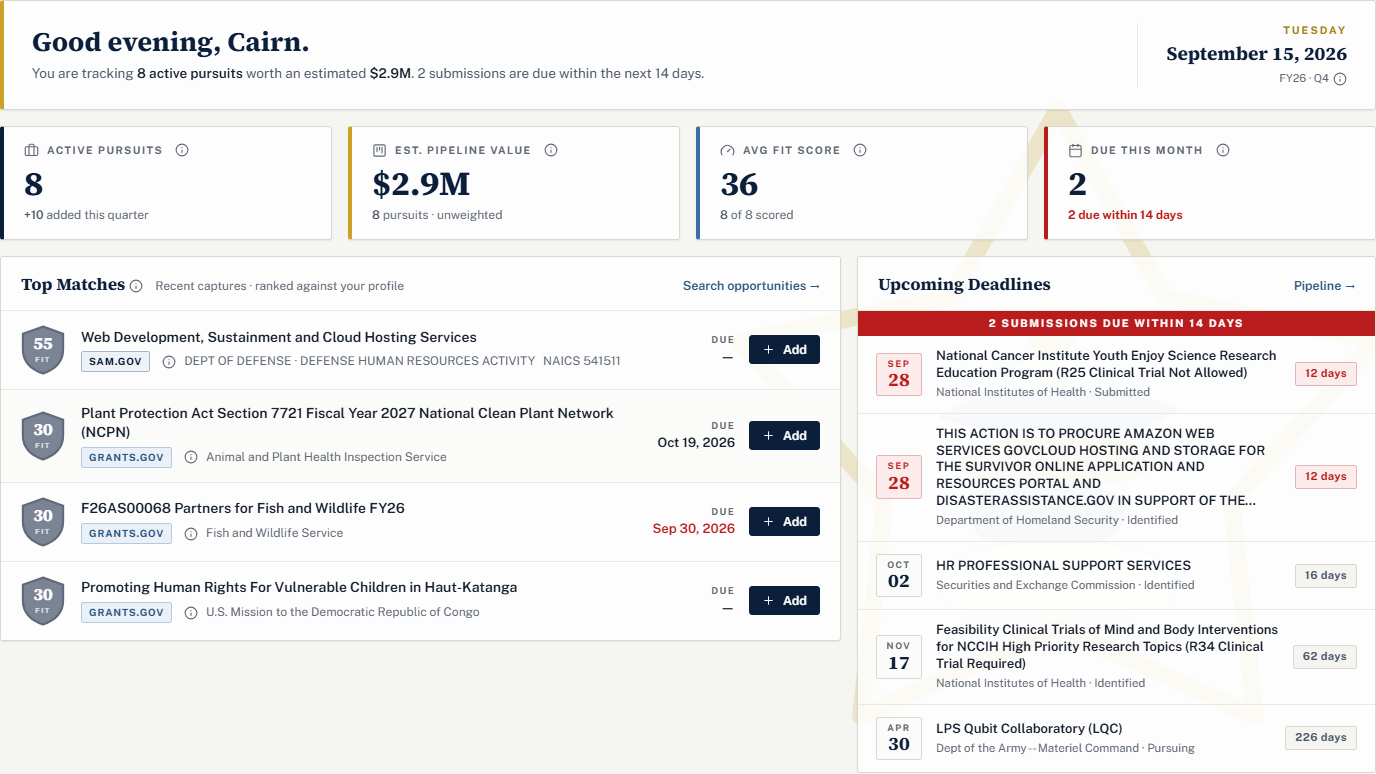
Below the tiles, Top Matches lists recently captured opportunities ranked against your profile, each with an Add button, and Upcoming Deadlines lists what's due on active pursuits. The date box on the right shows the federal fiscal year and quarter, because federal buying follows that calendar rather than the civilian one. If Top Matches is empty, go back to the profile: new captures are only scored once there's a profile to score them against.
Ask the assistant, and click the little icons
The floating button in the bottom-right corner opens the Cairn Assistant. It knows which page you're on, so "why is this ranked so low?" works without you explaining the context, and it can research opportunities or update pursuits for you. One guarantee we hold to: it never changes your data on its own. When it wants to add, update, or delete something, it pauses, lists each proposed action, and waits for your approval. The assistant is part of the Professional plan; on Starter the panel stays locked.
Small info icons sit next to fields and headings throughout the app. Click one for a short explanation of that specific thing. Each page also has a Page tour button in the breadcrumb strip that replays its guided walkthrough, and the full product documentation lives under Docs in the top menu once you're signed in.
That's the first hour. Profile, one search, one pursuit. Everything else in Cairn builds on those three.
Questions people ask
Is there a free plan?
Yes. Starter is free and covers fit-ranked search across SAM.gov and Grants.gov plus the capture pipeline. Professional adds the AI assistant, AI drafting, the proposal workspace, Recompete Radar, and team seats, and Enterprise is unlimited usage with priority support and automated Grants.gov submission. Current prices are always shown on the home page.
Do I need my own SAM.gov API key on day one?
No. New accounts borrow a shared starter key for a short period, so auto-fill and search work immediately. Once that period ends, opportunity search and saved-search alerts need a key of your own, which you request from the API Key section of your SAM.gov account details page. Filling in your profile from SAM.gov keeps working either way, and Cairn reminds you before starter access ends.
Can my teammates work in the same workspace?
Yes. Pursuits belong to your company rather than to one person, so everyone sees the same pipeline. Team collaboration is part of the Professional and Enterprise plans, and seats come with the plan: ten on Professional, unlimited on Enterprise. You add people from Company › Team, either by creating their account directly with Add user or by sending them a single-use invite token.
Is there a mobile app?
A Cairn companion app for iPhone is on its way to the App Store. It signs in with the same account, shows the same live pipeline, and carries your ranked matches and deadline alerts, and there is nothing extra to buy. Create your account on the web first; the app has no sign-up screen of its own.