Working the pipeline: from a search result to a bid decision
The pipeline is where a pursuit lives from the moment you notice it until you win, lose, or walk away. This post follows one opportunity from a search result through the board, the pursuit drawer, the bid/no-bid scorecard, and a gate review, with the reasoning behind each step.
A pipeline stays useful only while it reflects reality. Most of the design decisions in this part of Cairn exist to keep that true: a search that shows you what you can't bid instead of hiding it, a board where moving a card is a recorded decision, and a scorecard that produces a number you can defend three months later. This post follows one opportunity through all of it.
Find it
Open Capture › Find Opportunities. One search covers both federal registries, contract opportunities from SAM.gov and grant funding opportunities from Grants.gov, and the two source pills let you switch either one off. Results are merged and de-duplicated, so a notice that appears in more than one place shows once, keeping its highest fit score, and each result carries a badge for where it came from.
Type keywords for the work you do and search. The Use company profile pill is on by default; it's what ranks the results against your profile rather than returning them in the order the registries did.

The filter bar narrows by NAICS (up to five codes), set-aside (Total Small Business, 8(a), WOSB, SDVOSB, HUBZone), state of performance, and due window (30, 60, or 90 days). Here is the single most important thing to know on this page: those structured filters only narrow SAM.gov results. Grants.gov opportunities don't carry those fields, so grants are matched on your keywords alone, and the filters never constrain them. The page says so in small print, and we'll say it again here because it surprises everyone once.

By default Cairn hides anything whose deadline has passed, plus anything posted more than two years ago. A Grants.gov opportunity can stay "posted" for years, and without the age cut-off stale listings crowd out live ones. Toggle Include expired & very old to see them; those results are chipped Expired or Very old.
Reading a result
Every result has a fit score from 0 to 100 and a Why it fits list explaining it. The score reads your NAICS and PSC codes, your set-aside certifications, your target agencies, and your capability narrative. It's triage, not a verdict.

Results you can't bid are greyed but kept visible, and a high-fit result your certifications bar you from gets an explicit Ineligible flag. We flag rather than hide on purpose. A strong fit score shouldn't nudge you toward work you're not permitted to win, and seeing what you're locked out of is useful information about which certifications would open doors.
The value figure means different things by source. For a contract it's the government's estimated total value of the work. For a grant it's the funding ceiling, the most a single award can be. Either way it's the official estimate, not a promise.
The results line reads something like "12 matches · from ~40 notices". Matches is what you're seeing after de-duplication and your filters. The larger number is the approximate total the sources reported before local filtering.
When something looks worth a closer read, click Add to Pipeline. It lands in Identified, the first stage, ready to qualify.
Two other ways in
Search isn't the only intake. The dashboard's Top Matches card lists recently captured opportunities ranked against your profile, each with an Add button. And on the Professional plan, Capture › Recompete Radar runs a weekly sweep of expiring federal awards in your NAICS codes and target agencies, so you can position for the follow-on before the solicitation drops; Add to pipeline on a candidate creates the pursuit and saves a snapshot of the award with it. There's no free-text "add an opportunity by hand" path. Every pursuit starts from a real notice or a real award, which is what lets the rest of the product read the source document.
The board
Capture › Pipeline is a board: columns are capture stages, cards are pursuits, and moving a card is a decision you're recording. The stages run left to right: Identified, Qualifying, Pursuing, Proposal in Progress, Submitted. After that a pursuit reaches a terminal outcome, Won, Lost, or No-bid, and drops off the active board into a collapsed Closed strip at the end, where Won outcomes get a gold chip. Closed pursuits no longer count against your active-pursuit limit. To reopen one, move it back to an active stage.

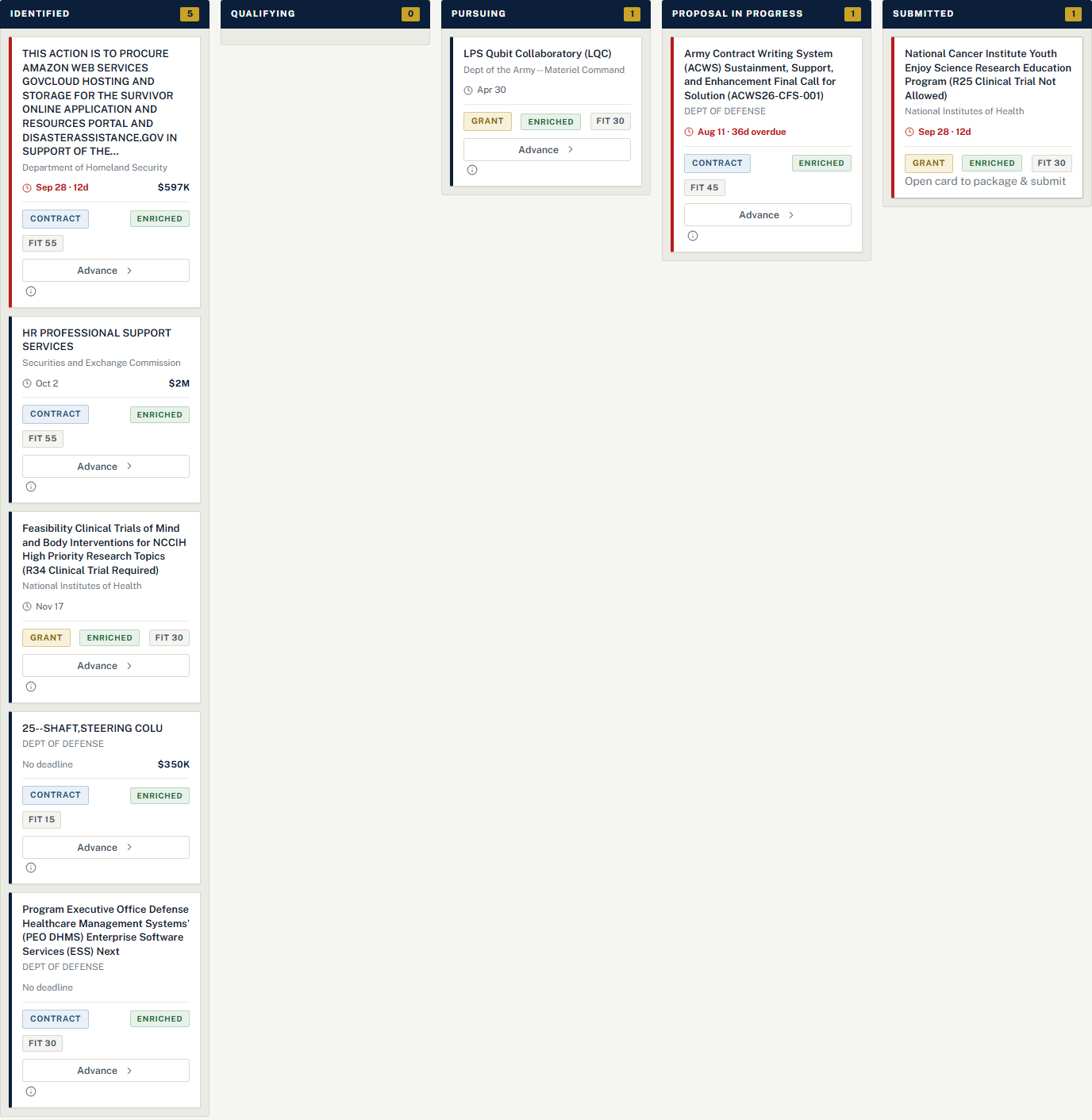
A card shows the title, agency, due date, value, a Contract or Grant chip, a fit badge, and an Advance button. Two colour cues are worth learning: a red edge means the deadline is overdue or inside the 14-day critical window, and a gold edge marks a high-fit pursuit. A New chip marks anything added in the last seven days. The Board and Table toggle at the top switches to a sortable table when you'd rather scan by due date or value.
Open the card
Click a card and the pursuit drawer opens with four tabs.
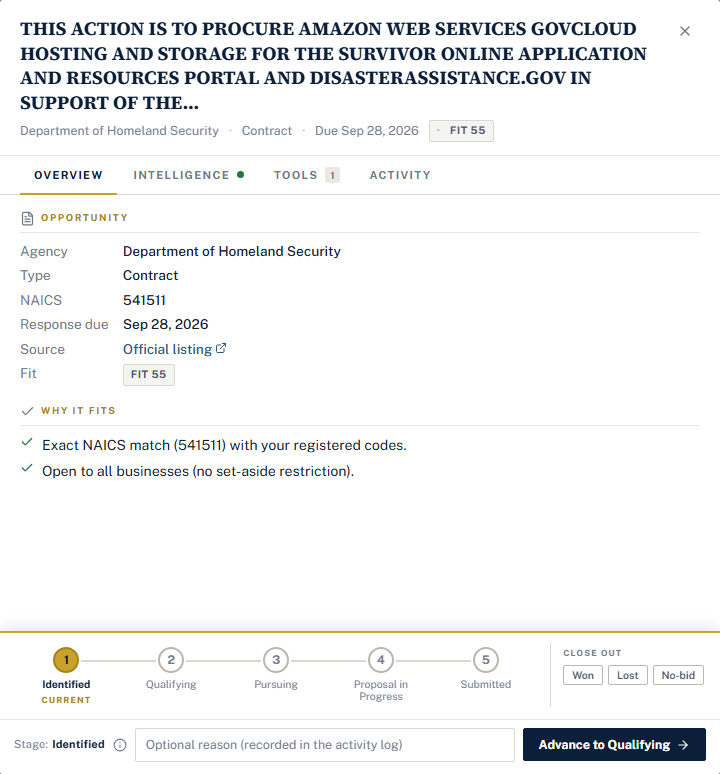
Overview is the opportunity fact grid: agency, type, NAICS, set-aside, response due, a link to the official listing, and the fit score with its Why it fits reasons.
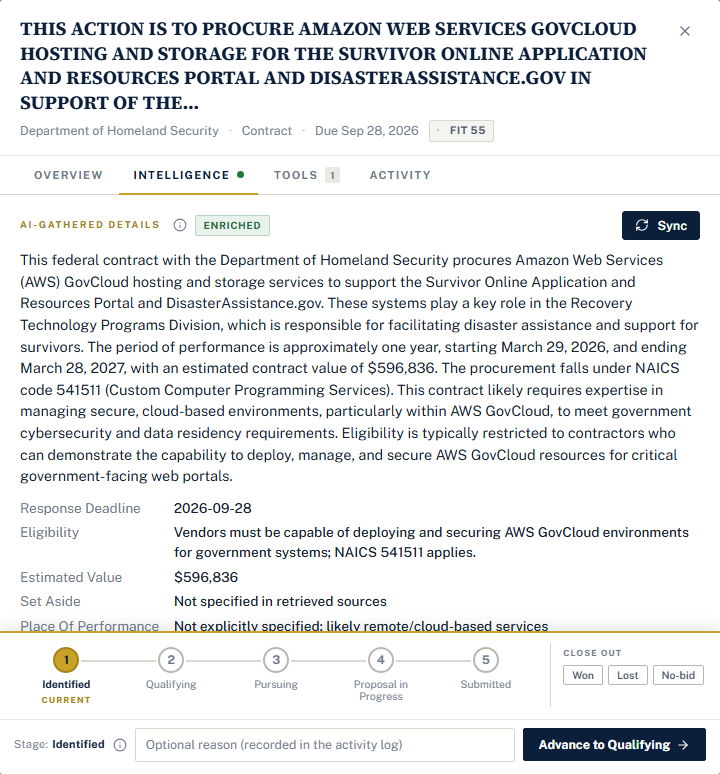
Intelligence is where the AI does some homework. Click Sync and Cairn gathers a summary, key facts, the source documents attached to the notice, points of contact, and links, then shows when it last synced and how many sources it read. This is the tab we'd open first on anything that scored well.
Tools changes with the stage. Early on it holds the bid/no-bid scorecard and the gate review. Once a pursuit reaches the proposal stage it adds the proposal launcher, and at the end the submission package.
Activity is the pursuit's log: every stage move, every note, tagged by who made it (you from the app, the assistant from chat, or the system).
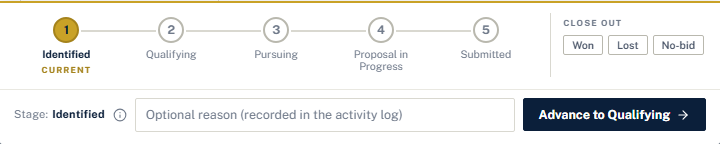
Pinned to the bottom of the drawer is the stage dock: a numbered stepper across the active stages with the current one marked, the terminal chips under Close out, a note box for an optional reason, and an Advance to … button. You can also move a card backward to any earlier stage, and we'd encourage it. A pursuit that needs more qualification than it got, or a solicitation that changed enough to reset your thinking, belongs back in Qualifying. Every move is recorded in the activity log with whatever note you typed, so the board's current state always has a history behind it.
Score the decision
The bid/no-bid scorecard is the structured version of the go/no-go conversation. Six weighted criteria: capability fit, incumbent position, agency relationship, past-performance relevance, resources and capacity, and competitive landscape. You score each from 0 to 10 and write a short justification.
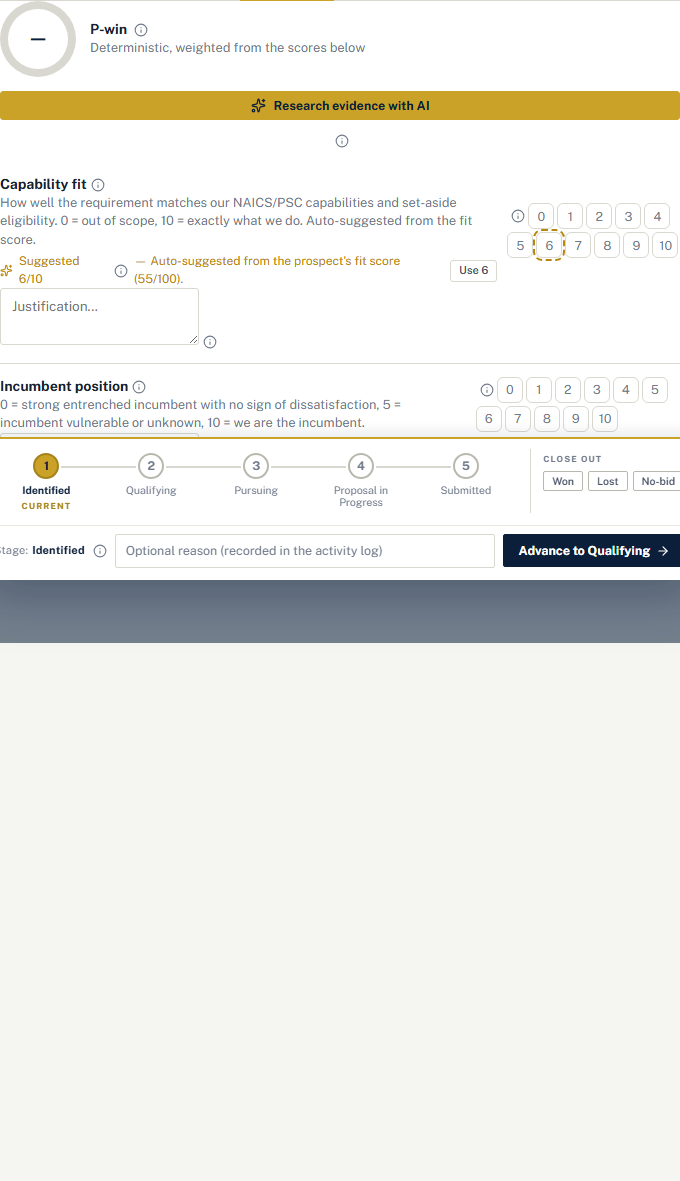
It produces two things worth having. The first is a P-win, a probability of win that's a deterministic weighted roll-up of your scores. The same inputs always produce the same number; there's no black-box model in the middle. Only the criteria you actually score count toward it, and unscored criteria are excluded rather than silently treated as zero. The second is an auditable record of why you chose to bid or pass, which is exactly what you want when someone asks about it a quarter later.
On Professional, Research evidence with AI reads the pursuit and your profile, suggests a score for each criterion with its reasoning, and marks those entries with an AI draft badge. The suggestion is a draft. You own the number, and we built the badge so nobody mistakes the two.
Gate reviews
A gate review is a capture-discipline checkpoint. When a stage has its gate turned on, you must record a bid, no-bid, or defer decision, with an optional rationale, before any pursuit can advance into it. The point is to force a deliberate go/no-go. Without a gate, pursuits drift forward one small step at a time and you discover at proposal time that nobody ever actually decided to bid.
Gates are off by default. Turn them on per stage under Company › Team, on the Pipeline tab. Most teams gate the entry to Pursuing, to Proposal in Progress, or both. Then, in the drawer's Tools tab, the Gate review panel takes the decision and Record gate review files it.
A working rhythm
Three habits keep the board honest. Qualify early and no-bid honestly: a no-bid recorded with a justification is a better outcome than a pursuit that quietly stalls in Qualifying for a quarter. Score the scorecard before the gate review, not during it. And let the terminal stages do their job, because closing pursuits is what keeps the active board an accurate picture of the work in front of you.
When a pursuit does advance into Proposal in Progress, Cairn starts the proposal for you. That's the next post.
Questions people ask
Can I add an opportunity by hand?
No. Every pursuit starts from a real notice or award: a result in Find Opportunities, an entry in the dashboard's Top Matches, or a candidate promoted from Recompete Radar. That's what lets the rest of the product read the source document, gather intelligence, and shred the solicitation later.
Do the NAICS, set-aside, and state filters apply to Grants.gov results?
No. Those structured filters only narrow SAM.gov contract results, because Grants.gov opportunities don't carry those fields. Grants are matched on your keywords alone, and your organization type on the company profile is what determines which grants you're eligible for.
What happens when I close a pursuit as Won, Lost, or No-bid?
It leaves the active board for the collapsed Closed strip at the end, stops counting against your plan's active-pursuit limit, and keeps its full activity log. Won outcomes are marked with a gold chip. To reopen a closed pursuit, move it back to an active stage; reopening counts it against the limit again.
How is the P-win calculated?
It's a deterministic weighted roll-up of the scores you enter on the bid/no-bid scorecard, using each criterion's weight. The same inputs always produce the same number, only criteria you actually scored count, and unscored criteria are excluded rather than treated as zero. An AI-suggested score is a draft until you accept it.