The proposal writer, part 1: sources, the shred, and first drafts
When a pursuit reaches the proposal stage, Cairn starts the proposal for you and drafts a first pass from everything it already knows about the pursuit and your company. This post covers the front half of that workflow, from sources and the solicitation shred to the section editor, and explains what the AI is and isn't allowed to do with your writing.
We wrote the proposal workspace around one belief: the AI should do the busywork and the first draft, and a person should own every sentence that ships. Everything below follows from that. The AI drafts into a new version rather than over your text, it can't insert a source you didn't approve, and nothing it proposes is written to the proposal until you say so.
The workspace is part of the Professional and Enterprise plans. This post is the front half of the workflow; part two covers compliance, review rounds, and the submission package.
Where a proposal comes from
Most proposals in Cairn start themselves. When a pursuit advances into the Proposal in Progress stage, Cairn queues an automatic first draft: it creates the submission, picks an outline for a contract or a grant, runs a compliance pre-pass over the solicitation's attachments, and drafts every section from the gathered pursuit data and your company profile. The workspace header shows AI draft queued and then AI drafting sections while that runs, and each section fills in as it finishes. If a draft fails partway, you get a Retry AI draft button rather than a silent gap. Once it's done, Regenerate draft will redo every section into a new AI version; your current content stays in version history.
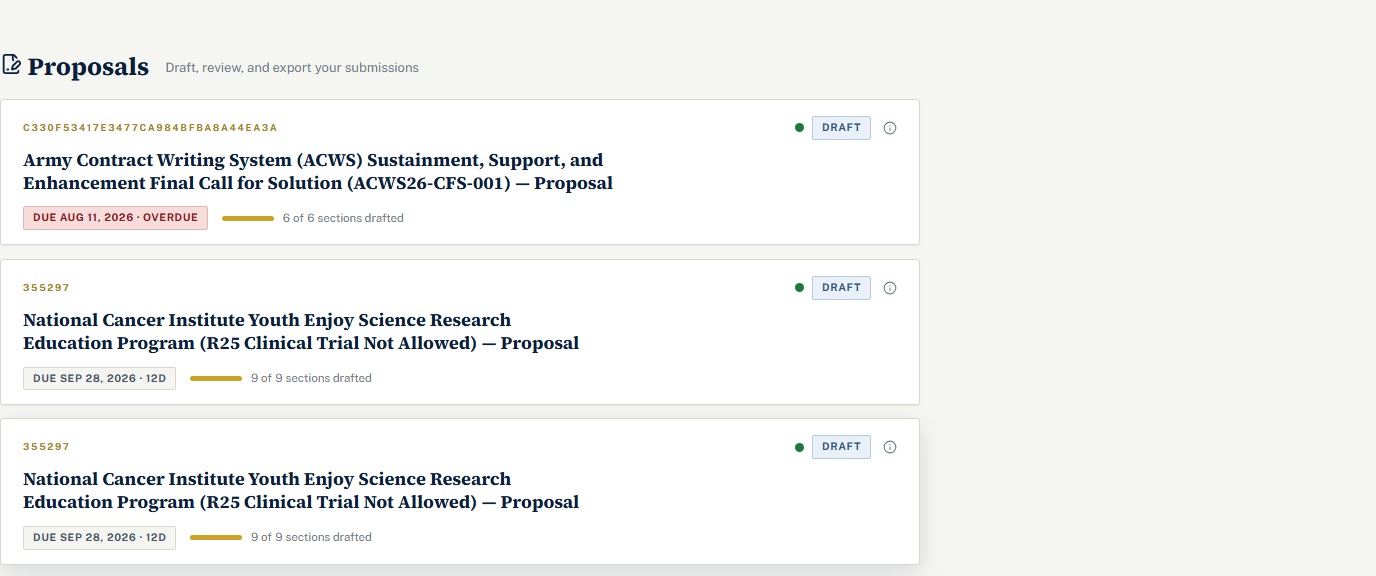
The manual route works too. Open a pursuit from the pipeline, go to its Tools tab, and under Proposal click Create proposal. Either way you land in the workspace at Deliver › Proposals, where the list shows every submission with its status chip, its due date, and a progress bar reading "6 of 9 sections drafted".
The workspace at a glance
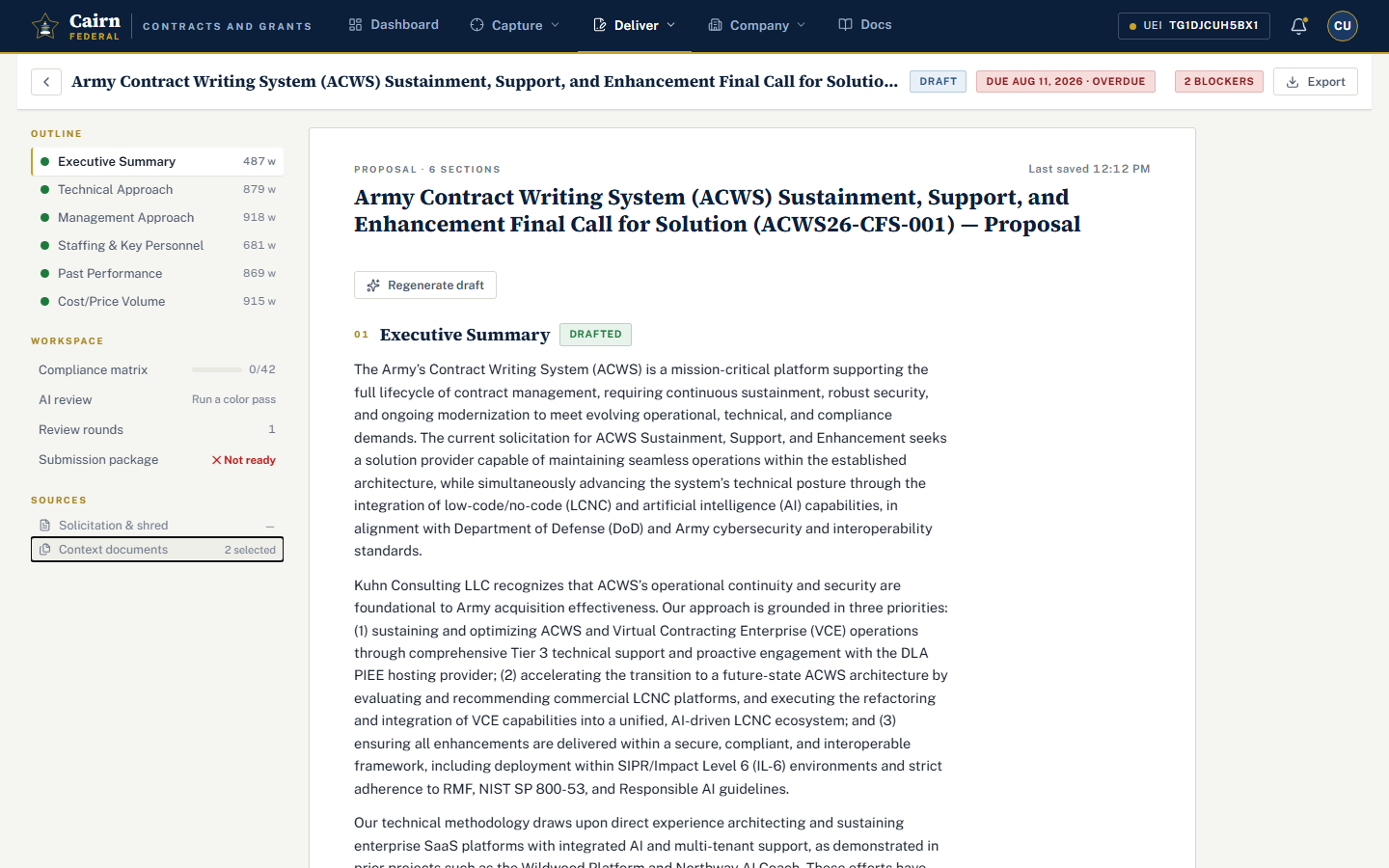
A sticky header carries the title, the status chip (Draft, Final, Submitted, or Abandoned), the due date with a days-left count, a readiness chip that reads Ready, Not ready, or the number of blockers, and an Export button that downloads the whole thing as a ZIP.
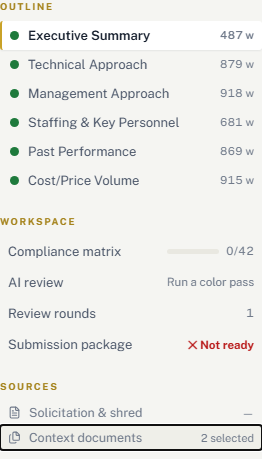
Down the left is the rail, in three groups. Outline lists every section with a state dot (Drafted, AI drafting now, Outline seed, or Not started) and a word count. Workspace opens the compliance matrix, AI review, review rounds, the SF-424 cover sheet for grants, and the submission package. Sources opens the solicitation and shred card and your context documents.
The middle is the document itself, one continuous canvas with a Draft with AI strip at the top and each section as a numbered block.
Set up sources first
The first time you open a fresh proposal, the Sources drawer opens on its own with the title Set up sources. Take the thirty seconds. This is where you tell the AI what it may read.
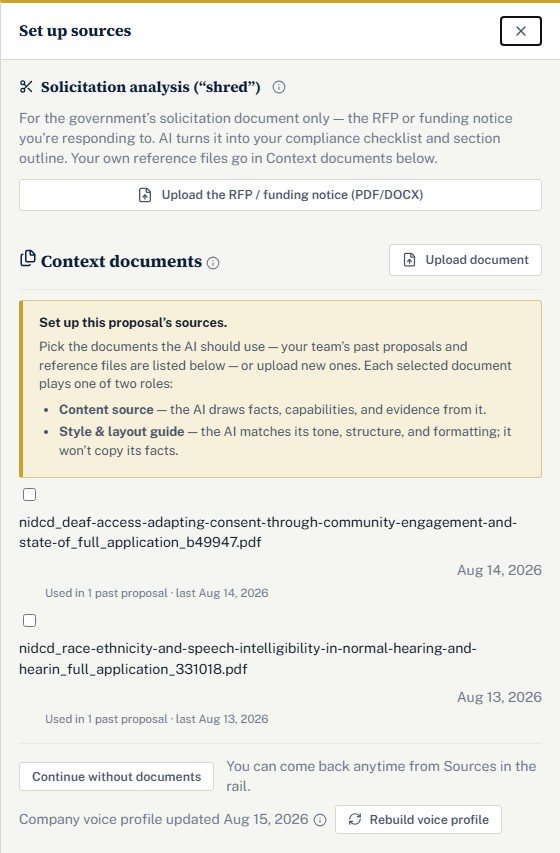
Context documents are reference material from your company: past proposals, writing samples, standard language. Each file is uploaded once for your whole company (it also appears in the Library under Content as a "Context document"), and each new proposal just ticks the boxes for the documents it should draw on. Then you give every selected document one of two roles:
- Content source: the AI draws facts, capabilities, and evidence from it.
- Style guide: the AI matches its tone, structure, and formatting, and won't copy its facts.
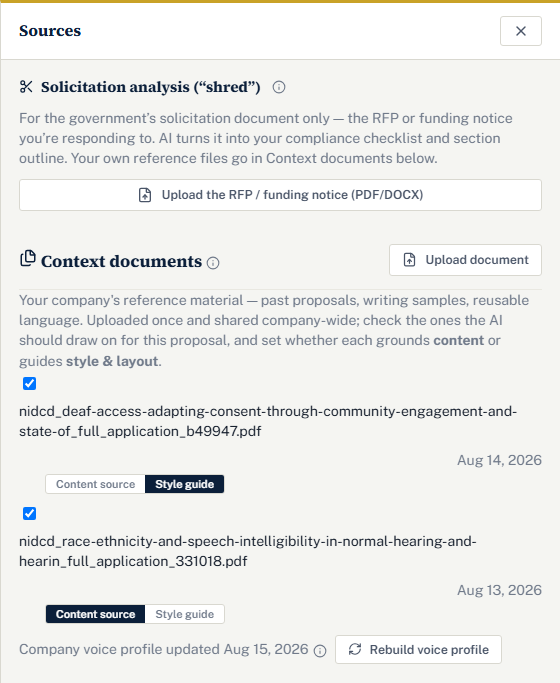
That split is the part we'd ask you to think about. A past proposal that won is a great style guide and a risky content source, because its facts belong to a different customer and a different year. A current capability statement is the reverse. Marking the roles keeps the AI from quoting last year's staffing plan into this year's bid.
The whole set of context documents does something broader: it teaches Cairn your company's voice profile, a distilled picture of your tone, structure, and phrasing. The profile refreshes when a document finishes processing, and there's a Rebuild voice profile button in the card. It captures style only. The AI never copies facts or client names out of your samples.
If you have nothing to add yet, Continue without documents closes the drawer and remembers that you chose to. You can come back any time from Context documents in the rail. One detail: a context document that isn't approved in the Library shows a Paused chip here, and the AI won't read it until someone approves it.
Shred the solicitation
Now the government's document. In the same drawer, the card titled Solicitation analysis ("shred") takes the RFP or funding notice as a PDF, DOCX, TXT, or MD file. Upload it with Upload the RFP / funding notice, then click Build matrix & outline (shred).
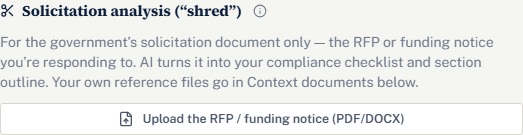
"Shred" is capture jargon for tearing the document apart line by line so that no requirement is missed. The run produces two things: a compliance matrix of every requirement it found, and a proposed section outline for your response. Don't upload your own reference material here; that belongs in context documents, and mixing the two is the most common way to get a confused outline.
The shred deliberately pauses partway through and shows you the proposed outline. Approve it as-is or edit the section list first. Nothing is written to your proposal until you approve, and if a teammate is assigned to the pursuit, they're notified that an outline is waiting for review.
No solicitation to shred? Start from a standard outline instead. The picker offers Federal contract (UCF volumes), which seeds Executive Summary, Technical Approach, Management Approach, Staffing & Key Personnel, Past Performance, and Cost/Price Volume, or Federal grant (narrative + SF-424), which seeds the standard grant narrative sections from Statement of Need through Budget Narrative. Each section arrives with a short purpose note as its first version (the rail marks it Outline seed), and you can add, rename, reorder, or remove sections from the block menu.
Drafting
There are three ways to get words into a section, and they compose.
Draft with AI on a single section writes it grounded in your company profile, your approved past performance, your saved content, and the context documents you selected. The result is saved as a new version tagged AI, so machine text stays distinguishable from your edits and you can roll back to any earlier version from History.
Draft N sections, in the strip at the top of the canvas, first-drafts every section that's still empty. Sections you've already written, or that have a pending AI revision waiting for your decision, are skipped. It will not overwrite your work. That rule is absolute, and it's why the button says how many sections it's about to touch.
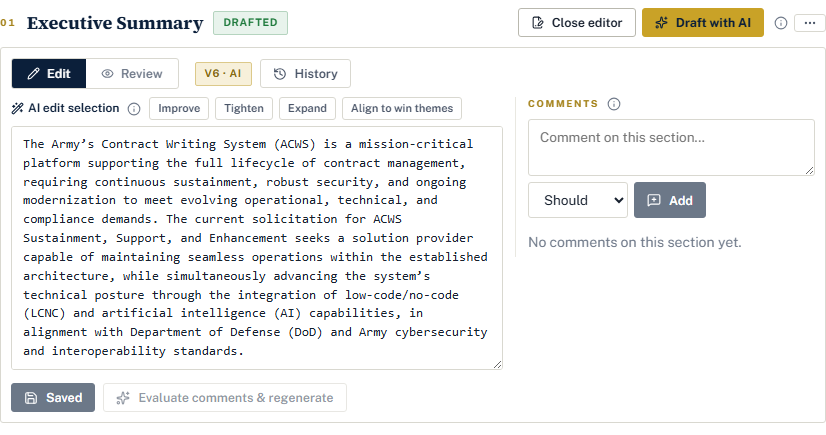
Edit & comment opens the section editor. In Edit mode you write Markdown in a plain textarea, and the toolbar above it holds the AI actions for a selection: highlight some text and choose Improve, Tighten, Expand, or Align to win themes, or pick a requirement from Address requirement… to rewrite the selection so it answers that row of the compliance matrix. The AI rewrites just the selection and drops it back in place, and nothing is saved until you click Save.
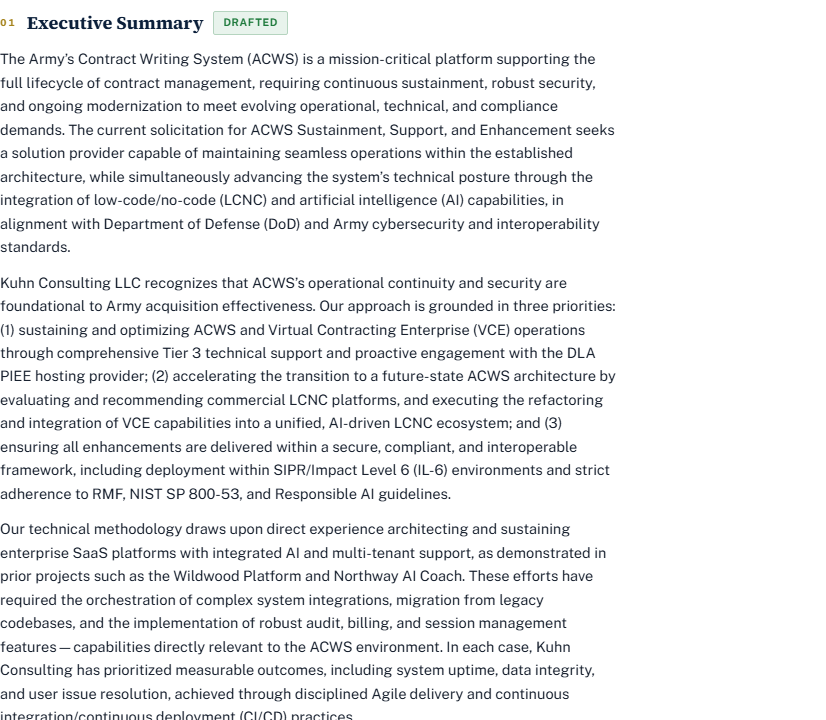
Each drafted section shows a footer with its version number, whether it's an AI draft or human text, its word count, how many requirements it covers, and when it was last updated. Restoring an older version is one click from History.
What the AI reads, and what feeds it
The quality of a draft tracks the quality of what the AI can see. Three things feed it. Your company profile, especially the capability narrative. Your Library, which holds past performance write-ups (marked prime or subcontractor, because evaluators weigh the two differently) and approved reusable content: win themes, boilerplate, resumes and bios, strong passages lifted from past proposals, and the context documents above. And the pursuit itself, including whatever the Intelligence tab gathered from the notice.
The Library has one gate worth understanding: a new asset is a draft, and the AI ignores it. Approving an asset with Approve for AI indexes it into your company's private search store, and only then can a draft retrieve and cite it. The badge reads Approved · indexed when that's true. This gate exists so unreviewed language can't find its way into a proposal by accident. A small library of your best language produces better drafts than a large one of mediocre content, so approve selectively.
That gets you from an empty submission to a drafted document with a compliance matrix behind it. Part two picks up from there: working the matrix, running review rounds, and getting the package ready to file.
Questions people ask
Will the AI overwrite something I wrote?
No. Draft with AI saves its output as a new version tagged AI, so your text stays in history and you can restore it. Draft all sections only touches sections that are still empty and skips anything you've written or anything with a pending AI revision. Selection edits change nothing until you click Save.
What's the difference between a context document and the solicitation?
The solicitation is the government's document, the RFP or funding notice you're responding to, and the shred turns it into your compliance matrix and outline. Context documents are your own material, such as past proposals and writing samples, which ground the AI's drafts and teach it your voice. Upload each in its own card; mixing them produces a confused outline.
Which plan includes the proposal workspace?
The workspace, the solicitation shred, AI drafting, and AI review are part of the Professional and Enterprise plans. On Starter the Proposals page shows the feature locked with an upgrade prompt, and after an upgrade it opens right away with your existing pipeline untouched.
Can I start a proposal without an RFP?
Yes. When there is no solicitation to shred, apply a standard outline instead: Federal contract seeds the Uniform Contract Format volumes, and Federal grant seeds the standard narrative sections plus the SF-424 cover sheet. Each section arrives with a purpose note, and you can add, rename, reorder, or remove sections before drafting.