The proposal writer, part 2: compliance, reviews, and the package
A drafted proposal is not a finished one. This post covers what happens between the first draft and the file: mapping every requirement in the compliance matrix, running human and AI review rounds, turning comments back into text, and assembling a submission package that refuses to approve itself while anything is still open.
Part one ended with a drafted document and a compliance matrix behind it. This post is about the part of proposal work that loses bids when it's skipped: proving you answered every requirement, getting real reviewers to read it, and making sure the package that goes out the door is complete. Cairn is opinionated here. The submission package will not let you approve it while a blocking check is open, and we think that's the most useful single feature in the workspace.
Everything below lives in the rail's Workspace group.
Work the compliance matrix
The shred turned every requirement it found in the solicitation into a row. Open Compliance matrix from the rail and each row has a status you can set to Open, Addressed, or N/A, plus an Addressed by section picker mapping it to the section that answers it. The rail shows a running count and a mini-bar, so you can see coverage without opening the drawer.
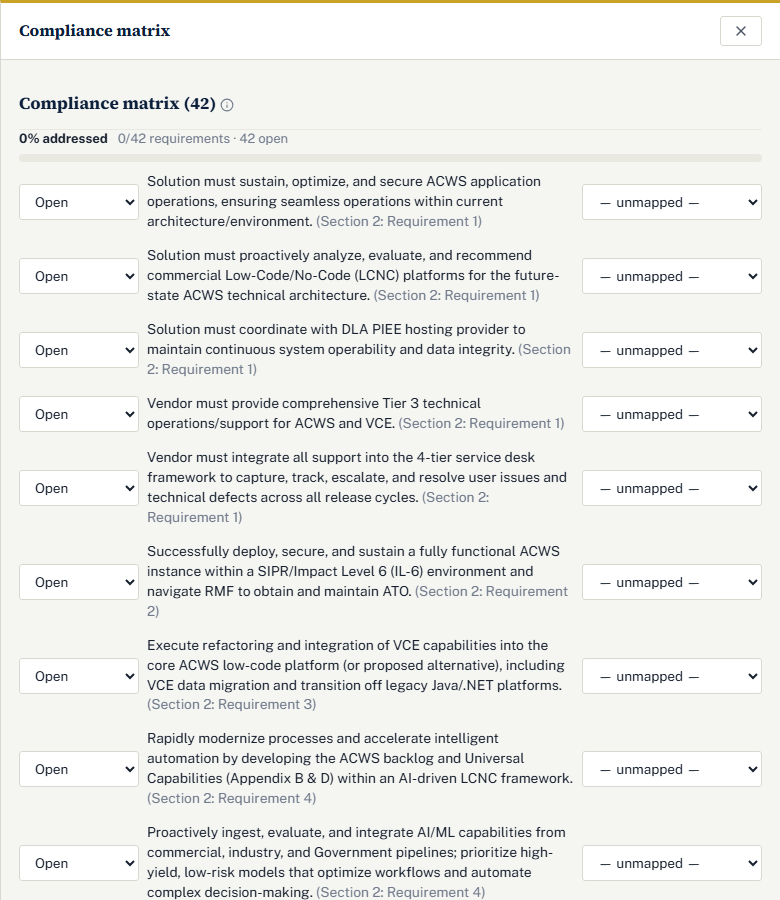
Two ways to close a row. Write the answer yourself in the mapped section, then mark the row Addressed. Or click the AI button on the row, which drafts the mapped section to address that requirement; the same thing is available from inside the section editor as Address requirement…, which rewrites a highlighted selection to answer a specific row. Either way, the matrix stays fully editable, and it ships in the export as a compliance checklist so an evaluator can trace every requirement to a page.
Our advice: work the matrix before the review rounds, not after. Reviewers should be reading a proposal that's already compliant, so their attention goes to persuasion.
Review rounds and color teams
Color teams are the traditional proposal review sequence, and Cairn uses the standard names: Blue for strategy and win themes, Pink for the first full draft, Red for compliance and competitiveness, Gold for the final executive review, Green for pricing and cost, and White for lessons learned.
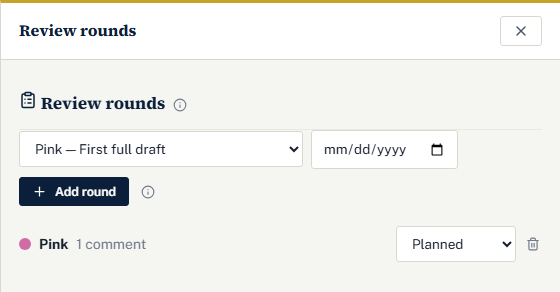
Open Review rounds, pick a color team, give the round a due date, and click Add round. A round moves through Planned, In progress, and Complete. Reviewers work in the section editor's Review mode: highlight a span of text and pin a comment to it. Each comment belongs to the active round and carries a severity: Must (blocking), Should, or Consider. Comments can be resolved as they're handled, and the outline rail shows an open-comment count on each section so nothing hides.
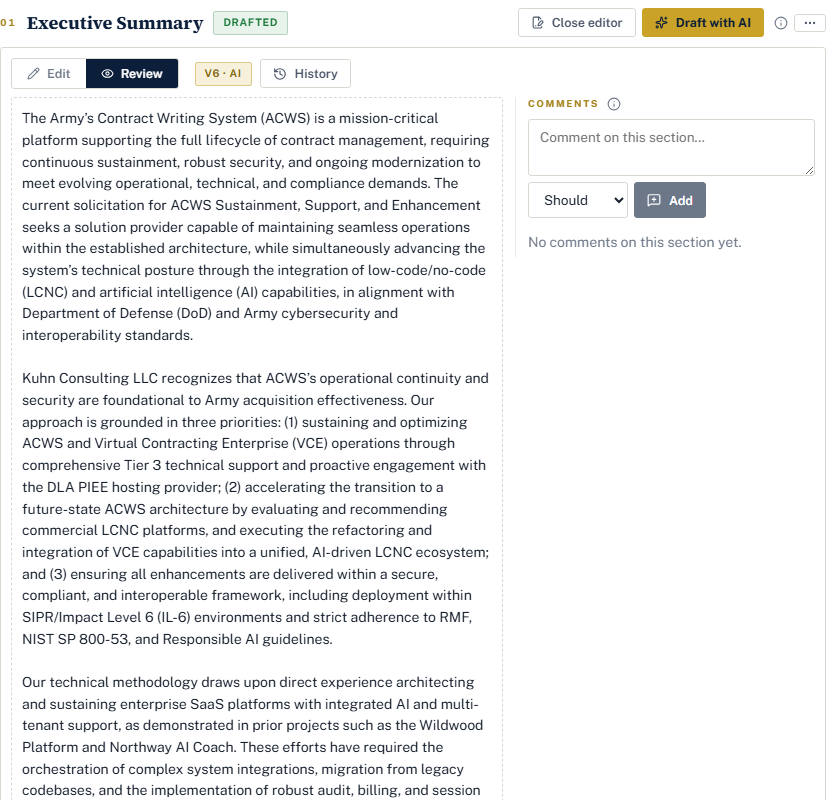
We'd suggest keeping the severities honest. A Must is something that would lose the bid or fail compliance. If everything is a Must, the submission package will block on all of it, which is the right behaviour but a miserable afternoon.
AI review
AI review runs the same exercise with the AI as reviewer. Choose a pass: Pink checks a first draft for compliance and completeness, Red reads as a skeptical evaluator for persuasiveness and win themes, and Gold does a final executive polish. Click Run review and the AI reads each written section and leaves anchored comments in a new round of that color, pinned to the exact text like a human reviewer's. If it finds nothing, it says so rather than inventing feedback.
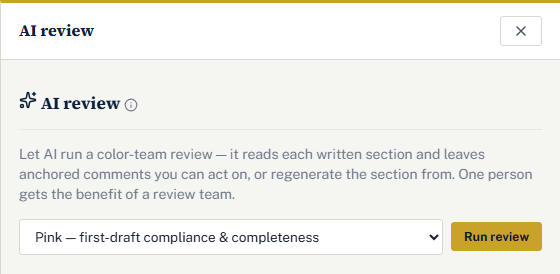
One person gets the benefit of a review team. That's the point of this feature, and it's why we run it on our own proposals in the order Pink, Red, Gold, with a real human reading between passes.
Turning comments back into text
Two tools convert feedback into edits, and both leave you in control.
AI: propose a fix works on a single comment. It drafts a replacement for the commented span, and accepting it writes a new version of the section.
Evaluate comments & regenerate works at section scale. The AI reads the section's current text plus every open comment and rewrites the whole section. The result appears as a proposed revision beside the current text, and nothing changes until you click Accept revision (written as a new AI version) or Reject. If you edit the section after generating, Cairn asks you to re-run, so the AI is always working from your latest text rather than a stale copy. The button is disabled while the editor has unsaved changes for the same reason.
The SF-424 cover sheet
For grant submissions, the rail has an SF-424 cover sheet entry. The SF-424 is the standard cover form for federal grant applications. Cairn auto-seeds it from your company profile and the opportunity, and it renders as the cover sheet in your export and in any Grants.gov filing. Re-populate from profile refreshes the auto-filled fields after you've changed the profile.
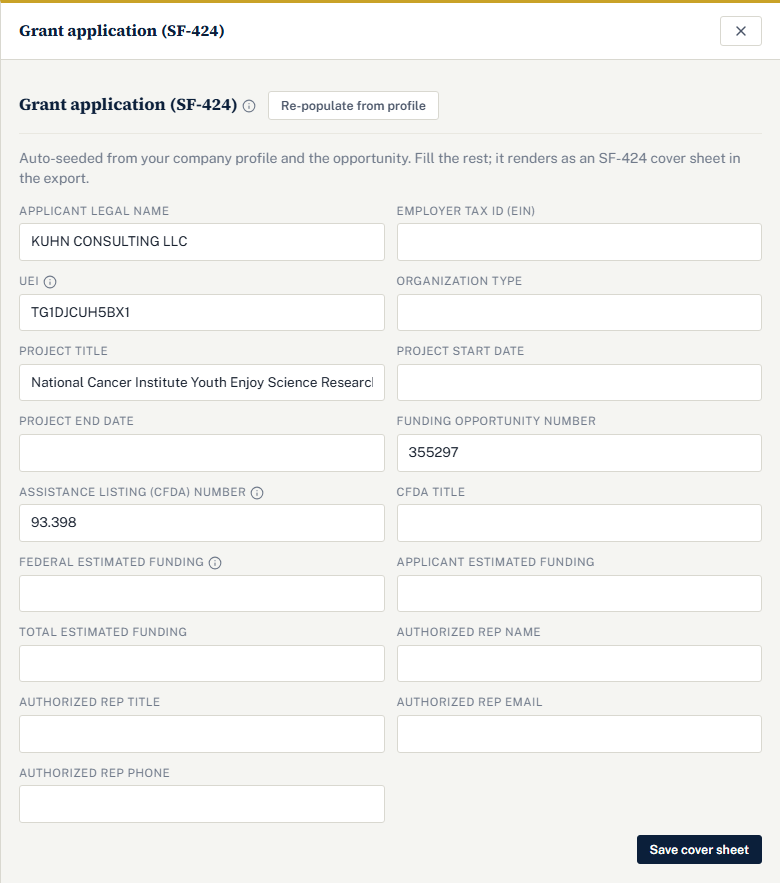
Two fields deserve a note. The Assistance listing (CFDA) number is the five-digit code identifying the exact federal grant program, such as 93.243; it's on the funding opportunity, and the CFDA title is that program's official name. And estimated funding has three parts: federal is what you're requesting from the agency, applicant is your organization's own contribution or cost-share match, and total is the two combined. Enter your match even when the program doesn't require one.
The submission package
Submission package assembles everything into one ready-to-file bundle, with a checklist standing between you and a mistake.
The ZIP contains the proposal as both DOCX and PDF, the compliance checklist, the SF-424 cover sheet for grants, the bid-decision summary from the scorecard, your approved past performance, your attachments under an attachments folder, and a manifest documenting completeness. Download package gets you the same ZIP the header's Export button does.
Attachments is where budgets, narratives, resumes, and letters go, each in a slot (Narrative, Budget, Resume, SF-424 form, or Other). The feature we're proudest of here is small: you can declare a required item before its file exists, with Add required item. Readiness will then block until something is actually attached, which is what stops a known-missing document from being forgotten under deadline pressure.
The readiness checklist
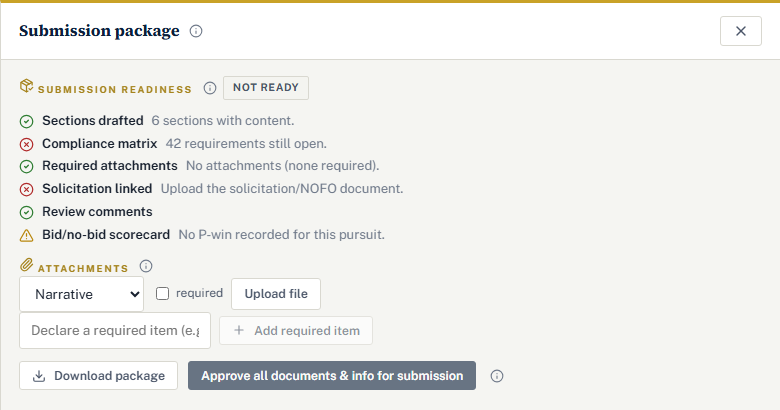
Two severities, and only one of them stops you.
Blocking checks, shown in red, must be resolved before final approval: open compliance items, empty sections, missing required SF-424 fields, required attachments with no file, unresolved Must comments, and a missing solicitation. Warnings, shown in amber, are advisory: Should and Consider comments, pending AI revisions you haven't accepted or rejected, and no P-win recorded on the scorecard.
The header's readiness chip summarises the same list, so you can watch blockers count down without opening the drawer.
Final approval
Approve all documents & info for submission is an explicit human sign-off. You're attesting that every document and field has been reviewed. The button stays disabled until every blocking check passes, and until then it explains what's still open. Approving freezes the submission at Final and notifies the pursuit's assignee that it's ready to submit. A submission moves through four states: Draft while it's being written, Final once approved, Submitted once filed, and Abandoned if the pursuit is dropped.
Filing with Grants.gov
For grants on the Enterprise plan, Cairn can file directly through the Grants.gov System-to-System (S2S) API, transmitting the SF-424 generated from your cover sheet plus every attached file. After approval, a Submit to Grants.gov button appears; it shows a confirmation listing the passed checks and the attachments about to be transmitted, and Confirm & submit sends it. The tracking number and processing status (Received, then Validated) then appear in the package, with a refresh control.
This needs setup, because Grants.gov requires each applicant to submit through its own Authorized Organization Representative. The credential lives on the company profile, in the Grants.gov submission card:
- In Grants.gov, have your AOR request S2S access and obtain your organization's S2S certificate.
- Export it as a PKCS#12 file (.pfx or .p12) with a password. This is the mTLS client certificate tied to your AOR-enrolled account.
- Upload the file and enter its password in Cairn. It's stored encrypted and never shown again; upload a new file only to replace or renew it.
- Select the Test environment first, validate a real submission end to end, then switch to Production.
The Test environment is Grants.gov's applicant acceptance environment: it validates a real application without filing it. Only switch to Production once a Test submission has succeeded, because Production files for real. Enable S2S submission is the master switch for your company; automated filing is attempted only when it's on and a certificate is uploaded, and turning it off pauses automated filing without deleting your certificate. The sender ID field is optional and only needed if Grants.gov or the agency gave you one.
Until S2S is set up, or on plans without it, Cairn gives you guided manual instructions instead: download the package, sign in to Grants.gov Workspace as the AOR, complete the SF-424 from the cover sheet in the ZIP, upload the narrative and attachments, then record the tracking number in the pursuit's notes. Contract submissions follow the solicitation's own instructions: upload the DOCX or PDF and the attachments where the agency says, record the confirmation in the pursuit's running notes, and move the card to Submitted.
That's the whole path, from a search result in the pipeline post to a filed application. The pieces that feel strict, the approval gate and the blocking checks, are the ones that have saved us the most.
Questions people ask
What blocks final approval?
Six things: open compliance items, empty sections, missing required SF-424 fields, required attachments with no file, unresolved Must comments, and a missing solicitation. Should and Consider comments, pending AI revisions, and a missing P-win only produce amber warnings. The approve button becomes available the moment every blocking check passes.
Can Cairn submit a contract proposal to SAM.gov for me?
No. Automated filing is available only for grants, through the Grants.gov System-to-System API on the Enterprise plan. For a contract, Cairn assembles the package and gives you step-by-step instructions to submit it the way the solicitation specifies, then you record the confirmation and move the pursuit to Submitted.
What is in the exported ZIP?
The proposal as both DOCX and PDF, the compliance checklist, the SF-424 cover sheet for grants, the bid-decision summary from the scorecard, your approved past performance, your attachments in a folder, and a manifest documenting completeness. Download package in the submission drawer and Export in the header produce the same bundle.
Do I need an AOR certificate to use the submission package?
No. The package, its readiness checklist, and final approval work on every plan that includes the workspace, and manual filing instructions are always available. The AOR-enrolled S2S certificate is needed only for automated Grants.gov filing, which is an Enterprise feature, and it is uploaded on the company profile under Grants.gov submission.